Introduction
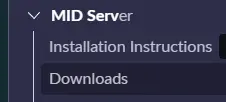
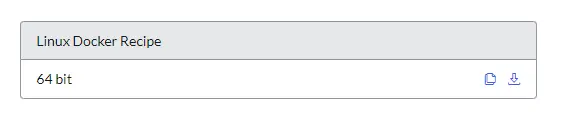
Since the Rome release, ServiceNow provides a download of a MID Server configuration using a Docker container. To start, download the Docker config from the MID Server downloads page on the instance by going to MID Server > Downloads and clicking on the download link under Linux Docker Recipe.
Included in the download are some scripts and assets that are required to build the image. Since there are parameters that you need to include in the build and rather than providing a full image, the instance only needs to download text files of scripts and a Dockerfile. This option makes it a small download and keeps it efficient.
Permissions Size User Date Modified Name
drwxrwxrwx     - dan  27 Jul 18:56  asset
.rwxrwxrwx  3.6k dan  28 Jul 01:58  Dockerfile
.rwxrwxrwx   70k dan  27 Jul 18:56  EULA - MID Server.pdf
drwxrwxrwx     - dan   2 Sep 16:27  META-INF
.rwxrwxrwx    43 dan  27 Jul 18:56  mid-secrets.properties
.rwxrwxrwx   197 dan  27 Jul 18:56  mid.env
.rwxrwxrwx  4.7M dan  27 Jul 18:56  ServiceNow Open Source Disclosure - MID Server.pdf
Configuring the Dockerfile
The Dockerfile includes the following steps:
- Download the MID Server zip file and validate the integrity of the file
- Building and setting environment variables on a CentOS build including dependencies
- Setting the username, User ID and Group ID and other permissions
- Finally running the included
initshell script with the start parameter
I am running an Oracle Cloud Instance of ARM Ubuntu. After trying to set up this MID Server image, the current configuration of this Dockerfile will not work for me since I am on ARM architecture and the included JRE in the MID Server download is x86_64 architecture.
I first played around with updating the Dockerfile to use Amazon Corretto (Amazon’s version of OpenJDK) image rather than CentOS. I know Amazon Corretto has a build of Java that will work with ARM, rather than using the packaged JRE from ServiceNow. This is an easy swap, because the amazoncorreto image is built off of an Alpine distribution, so using yum as the package manager makes it a direct swap.
...
# ################
# Final Stage (using the downloaded ZIP file from previous stage)
# ################
FROM amazoncorretto

RUN yum install -y https://dl.fedoraproject.org/pub/epel/epel-release-latest-7.noarch.rpm
...
Configuring mid.env
After updating the Dockerfile, I needed to update the mid.env file with all necessary parameters to connect to the instance.
MID_INSTANCE_URL=https://devxxxxx.service-now.com/
MID_INSTANCE_USERNAME=mid.server
MID_INSTANCE_PASSWORD=******
MID_SECRETS_FILE=
MID_SERVER_NAME=oracle
MID_PROXY_HOST=
MID_PROXY_PORT=
MID_PROXY_USERNAME=
MID_PROXY_PASSWORD=
MID_MUTUAL_AUTH_PEM_FILE=
The important lines are only the url, username, and password. Everything else can be skipped unless you have a requirement like being behind a proxy or want to include mutual authentication using a certificate.
After setting this up, I kept running into an error where the process said it couldn’t find a valid version of Java to run. I swear I had this version of Java that worked because I’m using the amazoncorretto image! The image was still using the packaged version of java in the agent/jre directory. I know I could set a custom Java install in the wrapper-override.conf file after setting up a MID Server outside of Docker many times. Question is, how do I change the line in this file without starting an interactive terminal in my container?
In the asset/init bash script, there’s a function called updateWrapperConfFromEnvVars that runs as part of the initial setup. This function also parses the mid.env file you include at runtime, looking for anything matching MID_WRAPPER_<wrapper config here>. Easy. All I had to add was MID_WRAPPER_wrapper.java.command=/usr/bin/java and the setup script will change this for me automatically.
Running the Container
Once the image was created, and the setup script runs through it’s configuration of the config.xml file and wrapper-override.conf files, we’re up and running with a MID Server in a Docker container!
While getting a feel for stopping, starting and restarting the container, I noticed that every time you start and stop the container, the instance detects that the keystore you generate when hitting Validate MID Server is missing, making your MID Server not validated. This makes sense, because there are no volumes mounted for the container, and it’s a “fresh” image every restart. When using the amazoncorretto instance, I found ServiceNow is setting the keystore in /usr/lib/jvm/java-1.8.0-amazon-corretto/jre/lib/security directory. Knowing this, I copied the files out of here first to a local directory, and then started the container, using a flag to mount my local directory to the container. Now the image understands that it was once validated before and can startup again no problem without having to revalidate.
This is my final command to run after building the new mid_server image.
docker run -d \
--env-file=mid.env \
-v $(pwd)/security:/usr/lib/jvm/java-1.8.0-amazon-corretto/jre/lib/security \
--name mid mid_server